
Workload details
Open a VM from Workloads to manage its hardware, start or stop it, and connect to its console. Apps have a separate detail view.
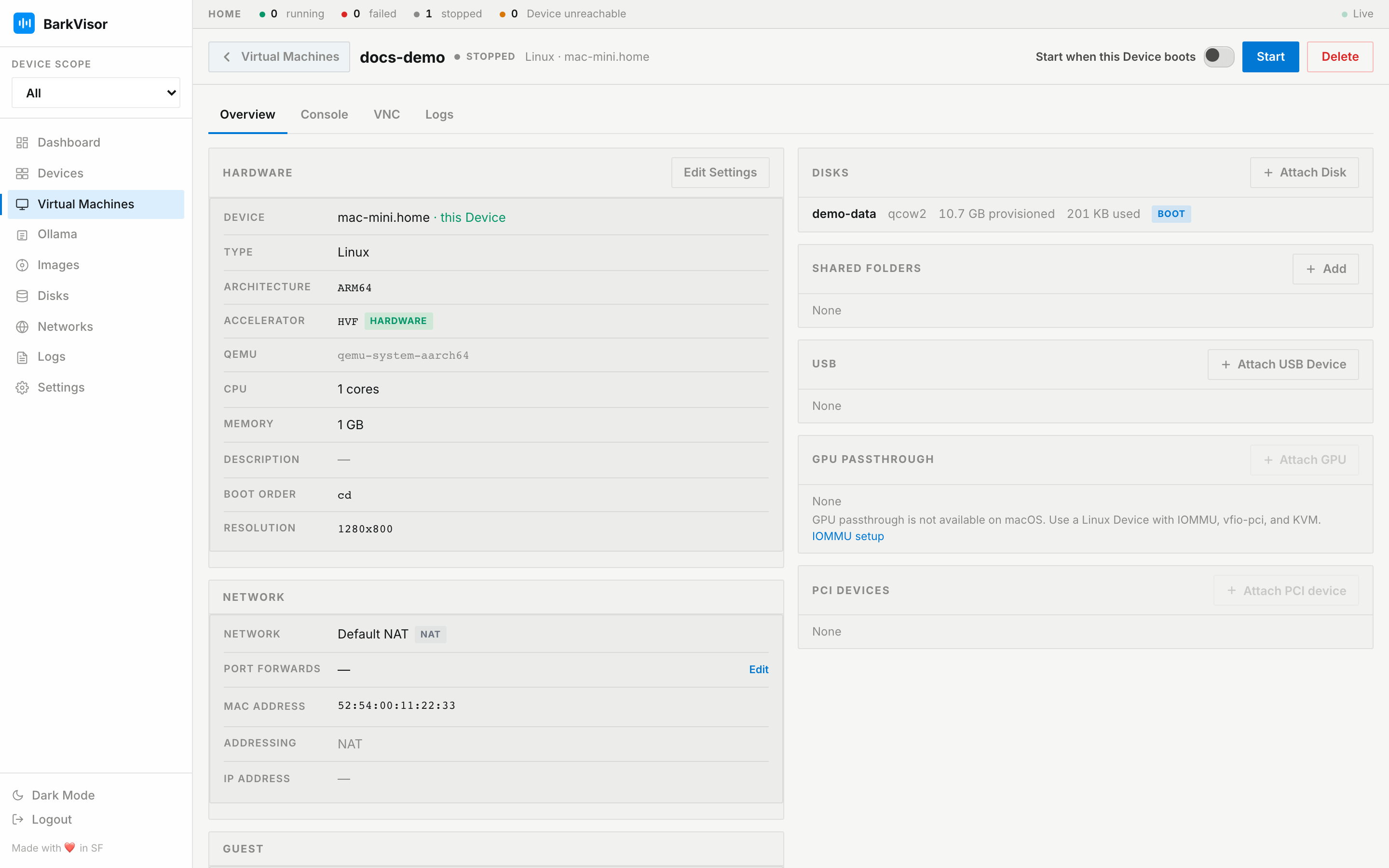
Toolbar actions
Section titled “Toolbar actions”- Start when this Device boots — labeled toggle next to Start. Off unless you turn it on.
- Start — boot the Workload
- Stop — Shutdown (clean ACPI shutdown) vs Force Stop (pull the plug), with confirmation
- Restart — clean reboot
- Delete — removes the Workload after confirmation
Controls are disabled when the Device cannot be reached.
Tabs are Overview, Console, VNC, and Logs. Metrics only shows while running. Which console tabs appear can depend on state and reachability.
Overview
Section titled “Overview”Read-only facts grouped into sections: Hardware, Network, Guest, Disks, Shared folders, USB, GPU passthrough, and PCI devices, each with its own attach/edit action (Edit Settings, Attach Disk, Add, Attach USB Device, Attach GPU, Attach PCI device).
Console
Section titled “Console”A console in the browser (serial console).
Use VNC for a graphical desktop or an OS installer. You can open it in a separate resizable window.
The toolbar offers Paste and Copy. Guest clipboard support needs spice-vdagent on a Linux desktop or Spice guest tools on Windows, plus a compatible QEMU build. Restart the VM after enabling that support.
Metrics
Section titled “Metrics”Live CPU/memory charts — visible only for running Workloads.
This Workload’s log stream, filtered from the global Logs feed.
Related
Section titled “Related”- Virtual Machines
- Devices
- Networks — ports and interfaces shown under Overview
- GPU passthrough — IOMMU / vfio-pci on a Linux Device