Apps
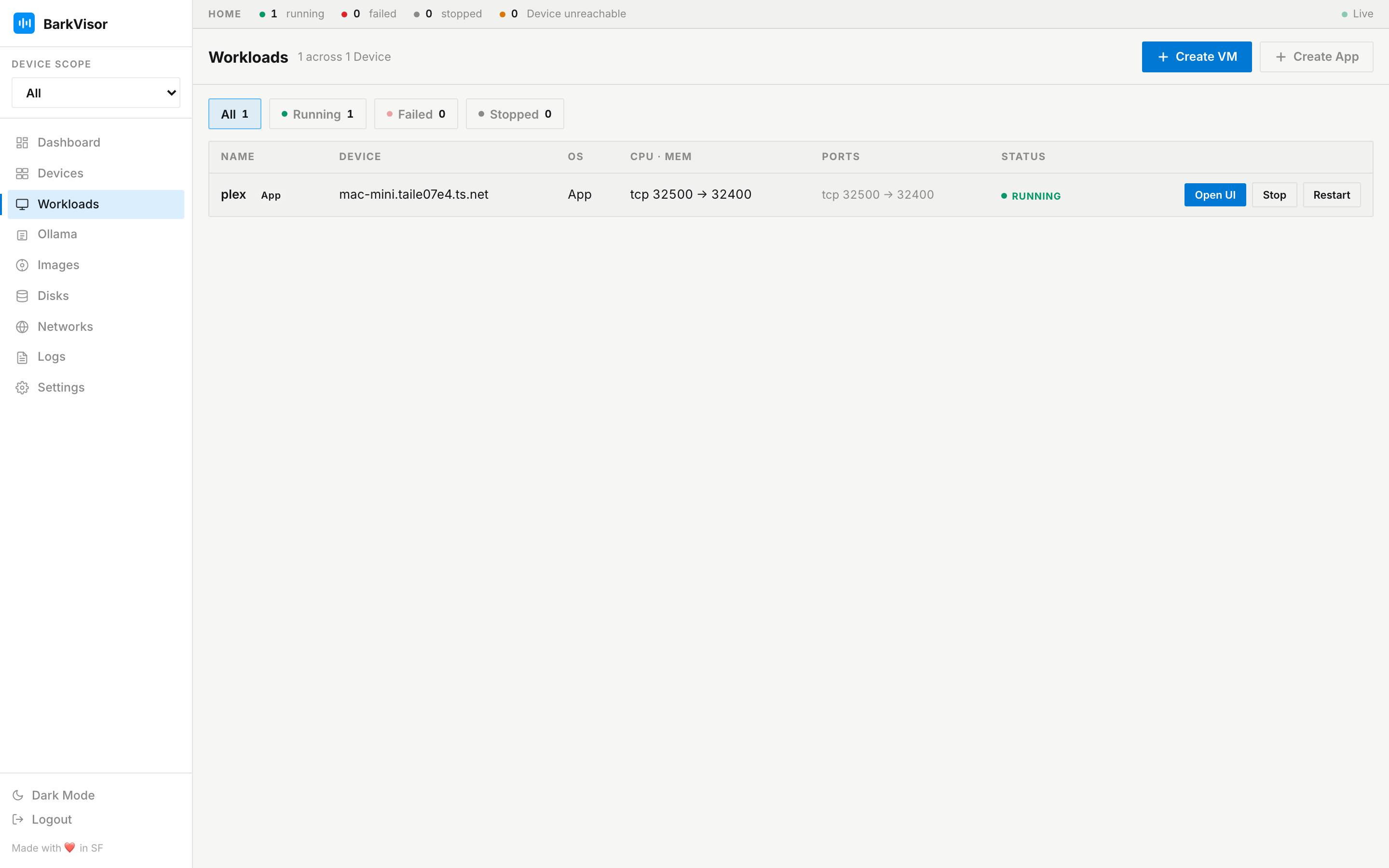
An App is a Docker Compose project running on a Device. Apps lists Docker apps across your Devices.
The Device needs Docker with Compose v2 installed. On macOS, BarkVisor can use OrbStack, Colima, or Docker Desktop. If Docker is missing, VM features still work.
Create an App
Section titled “Create an App”Open Apps → Create App. The wizard has two steps: Gallery → Configure.
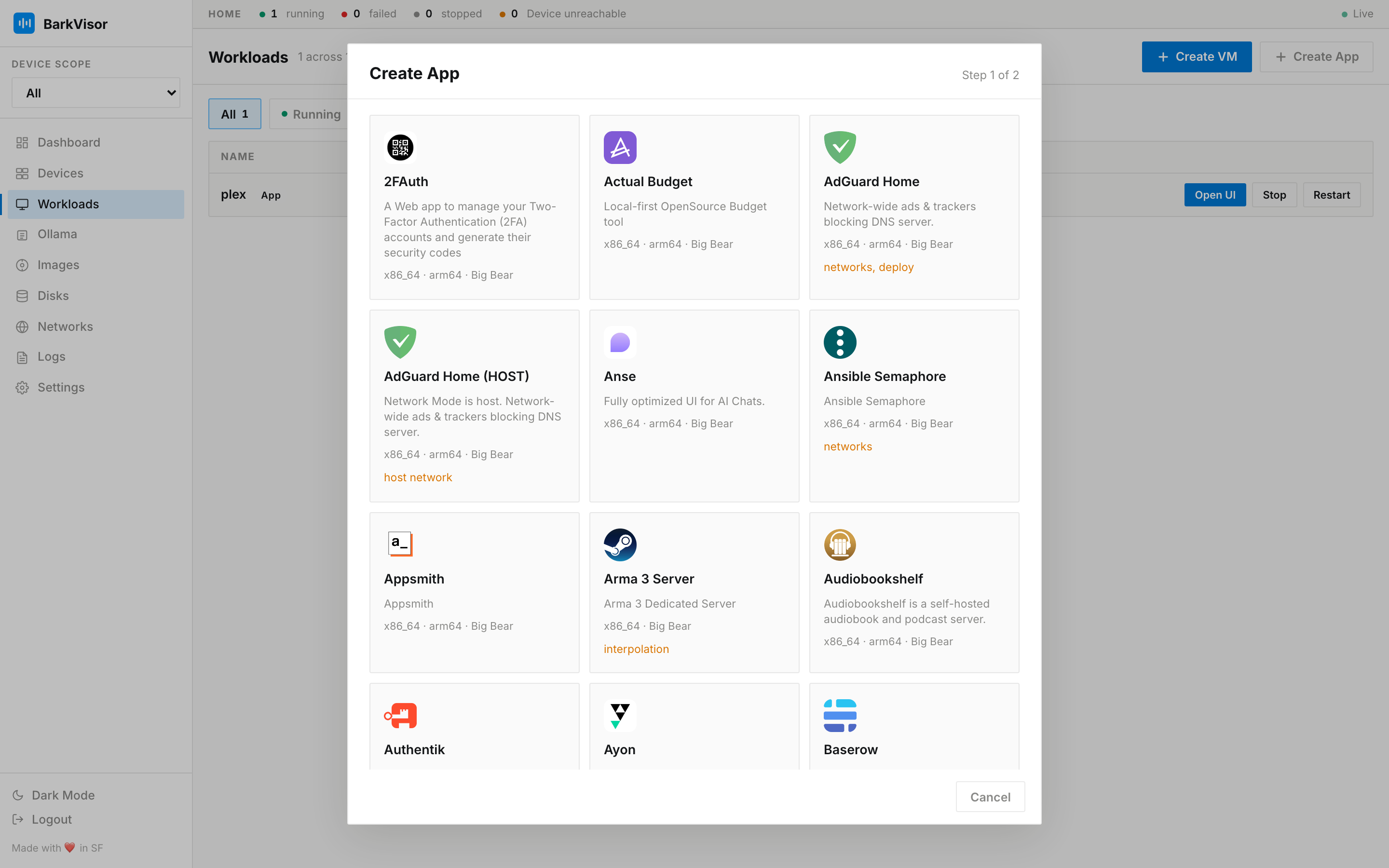
Gallery
Section titled “Gallery”Browse Big Bear Universal Apps and LinuxServer.io, or use the search and category filters. Apps that cannot run on the selected Device show the reason.
Configure
Section titled “Configure”Choose a Device and fill in the app’s settings: name, folders, environment variables, secrets, and ports. LinuxServer apps prefill user, group, and timezone values from the Device.
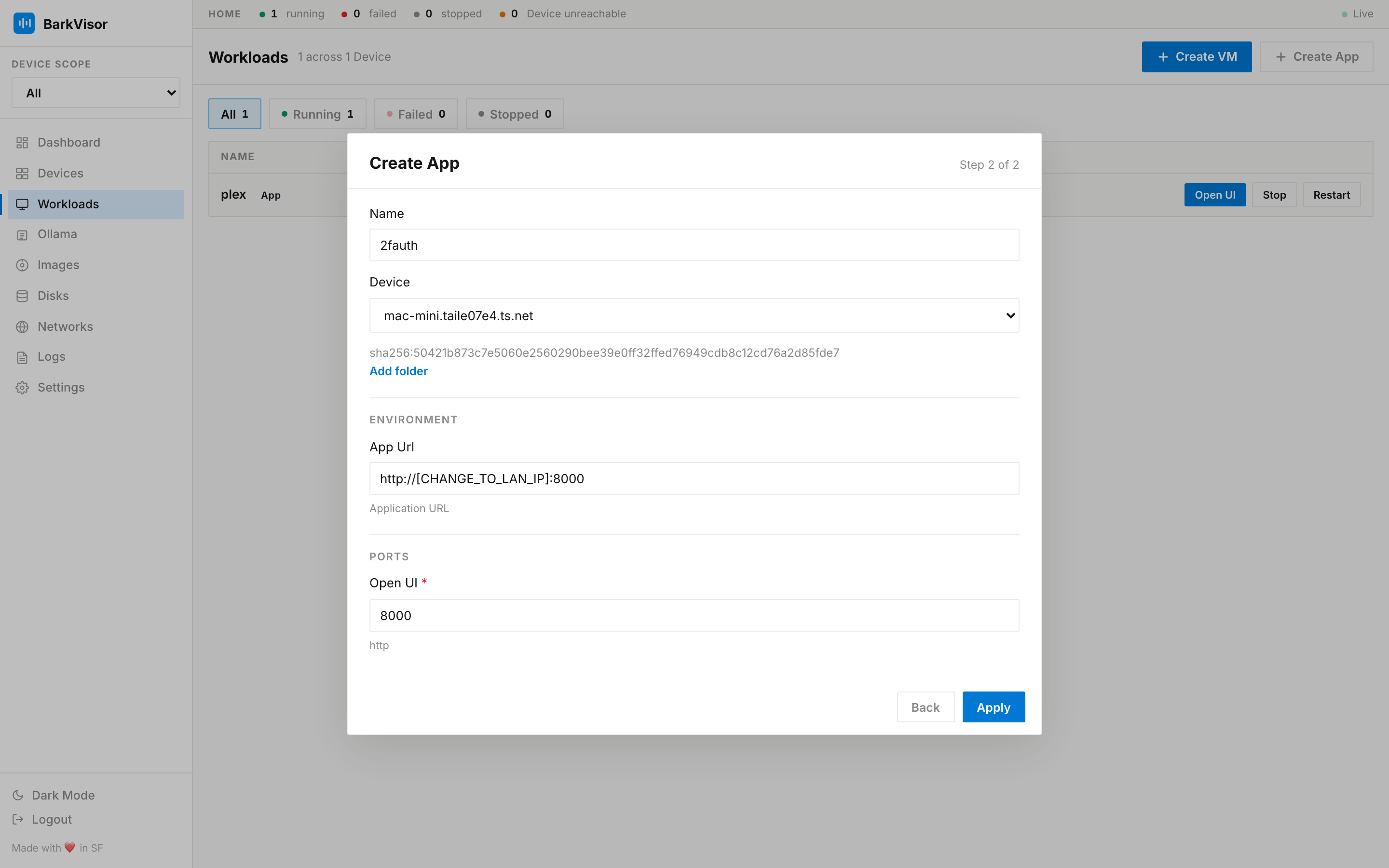
Click Create and follow progress in the Apps list. Use Start if the app is stopped. Starting an app pulls any required container images.
Published ports are reachable through the Device’s network address. Open app opens the app’s web interface when one is configured.
App details
Section titled “App details”Open the App in Apps. Available actions include Start, Stop, Restart, Open app, Update image when a newer catalog version is available, and Delete.
Overview
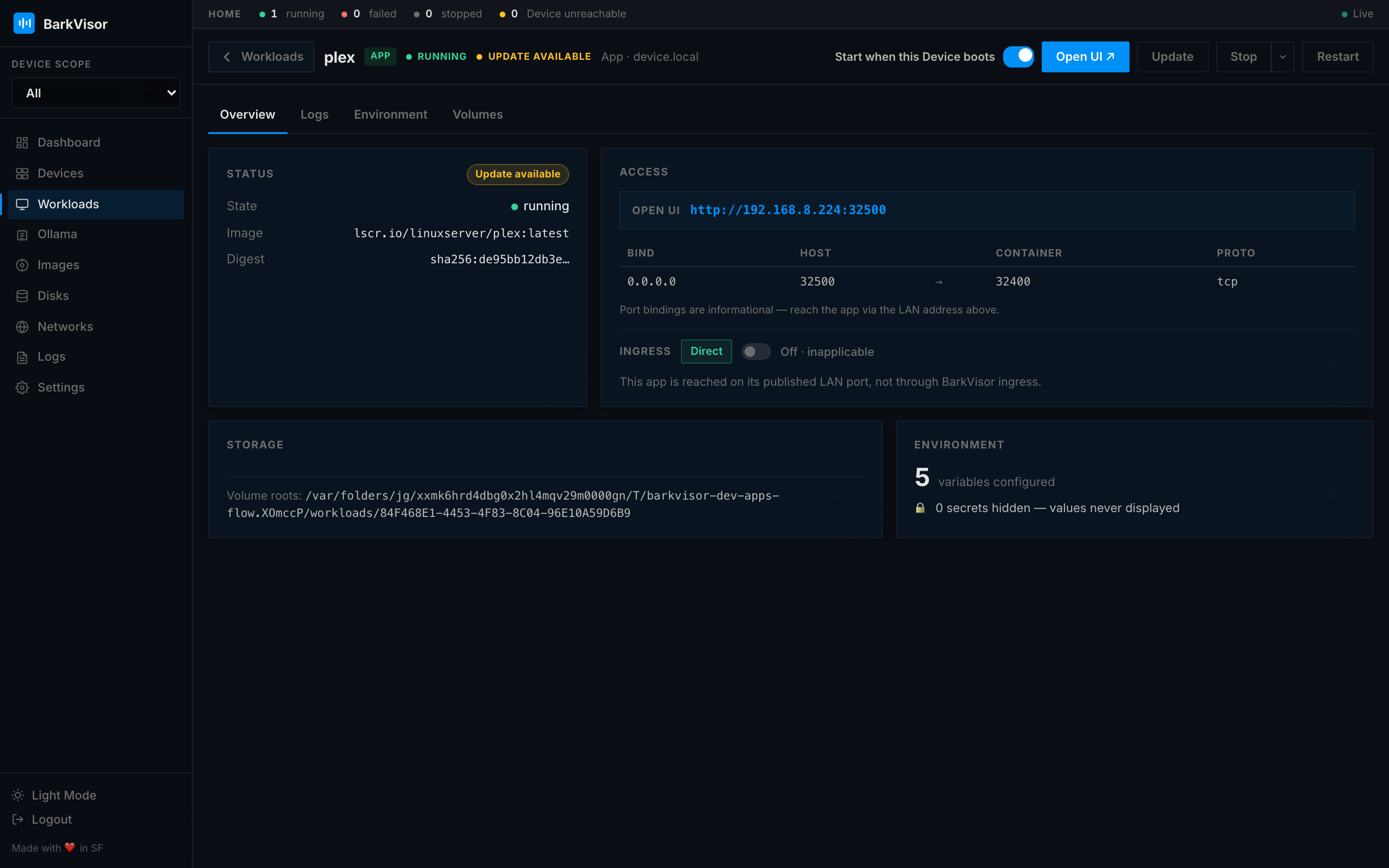
Section titled “Overview”See the app image, update status, access links, volumes, resource usage, and environment summary. Secrets remain hidden.
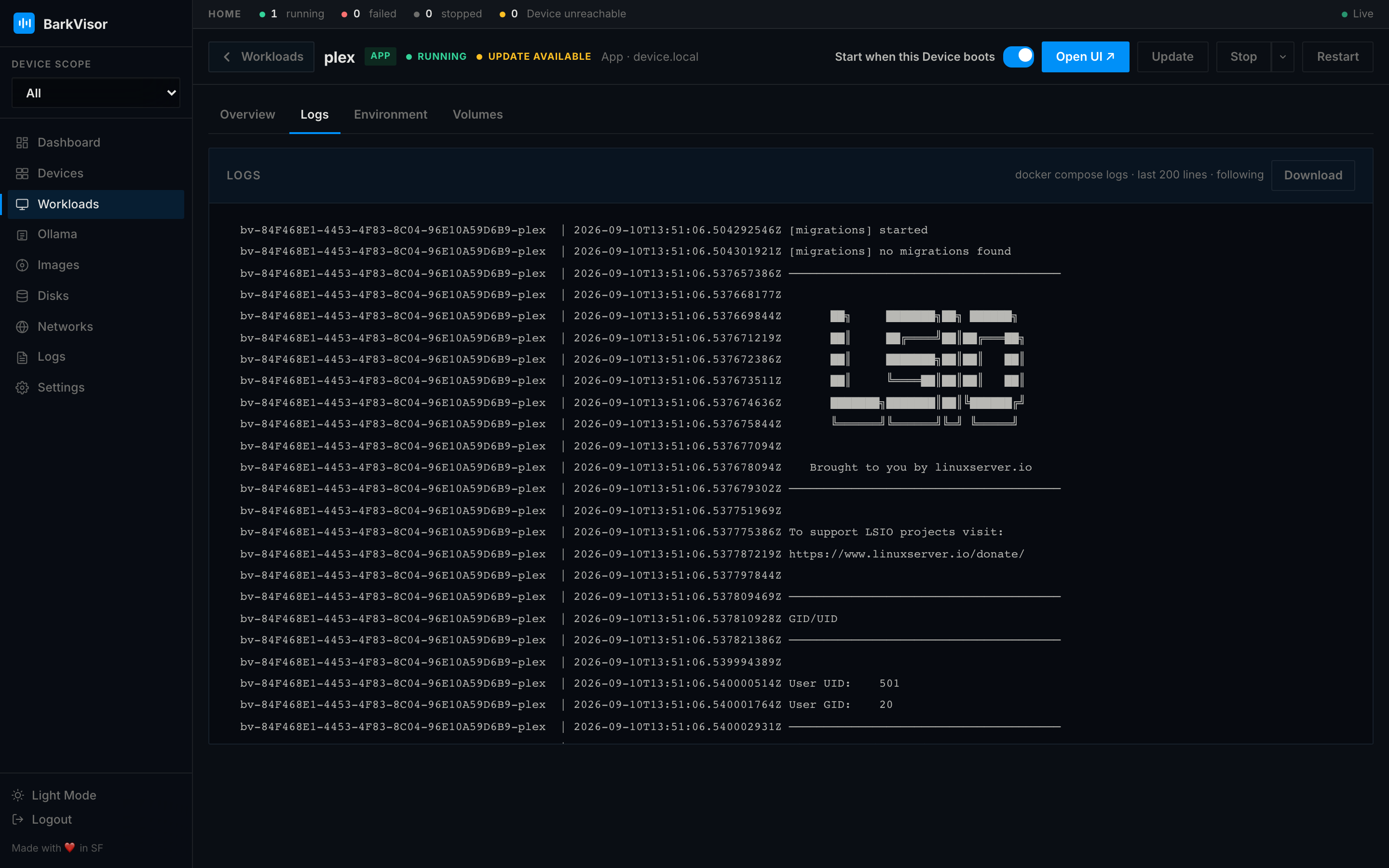
Read logs from the app’s containers. Some apps print an initial password here.
Terminal
Section titled “Terminal”Admins can open a terminal in a running container. Choose a container, then New terminal. Multiple sessions can stay open while you switch between them.
Environment
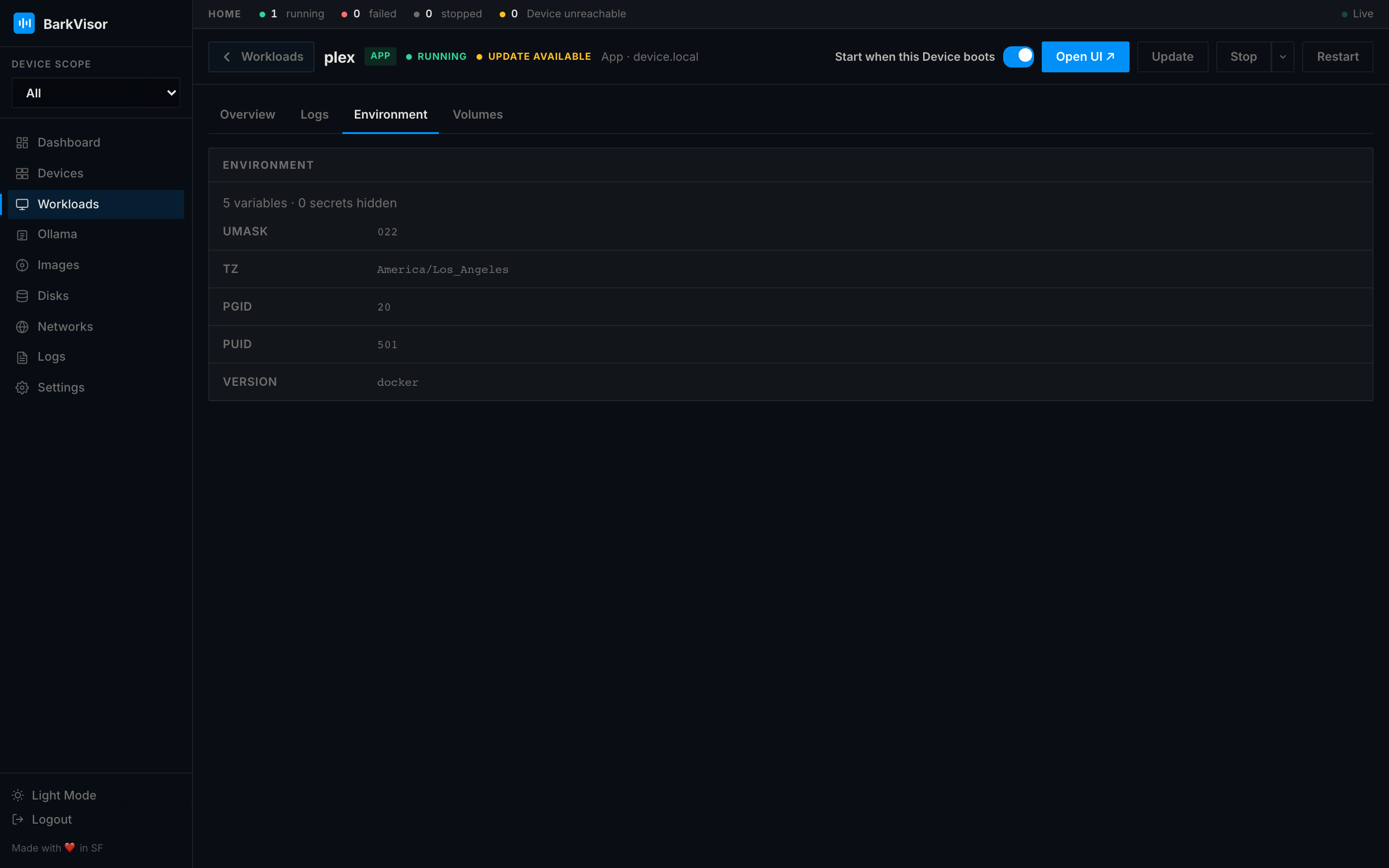
Section titled “Environment”Edit non-secret environment variables and save. Restart the app to apply the changes. Secrets stay redacted and are not replaced by the environment form.
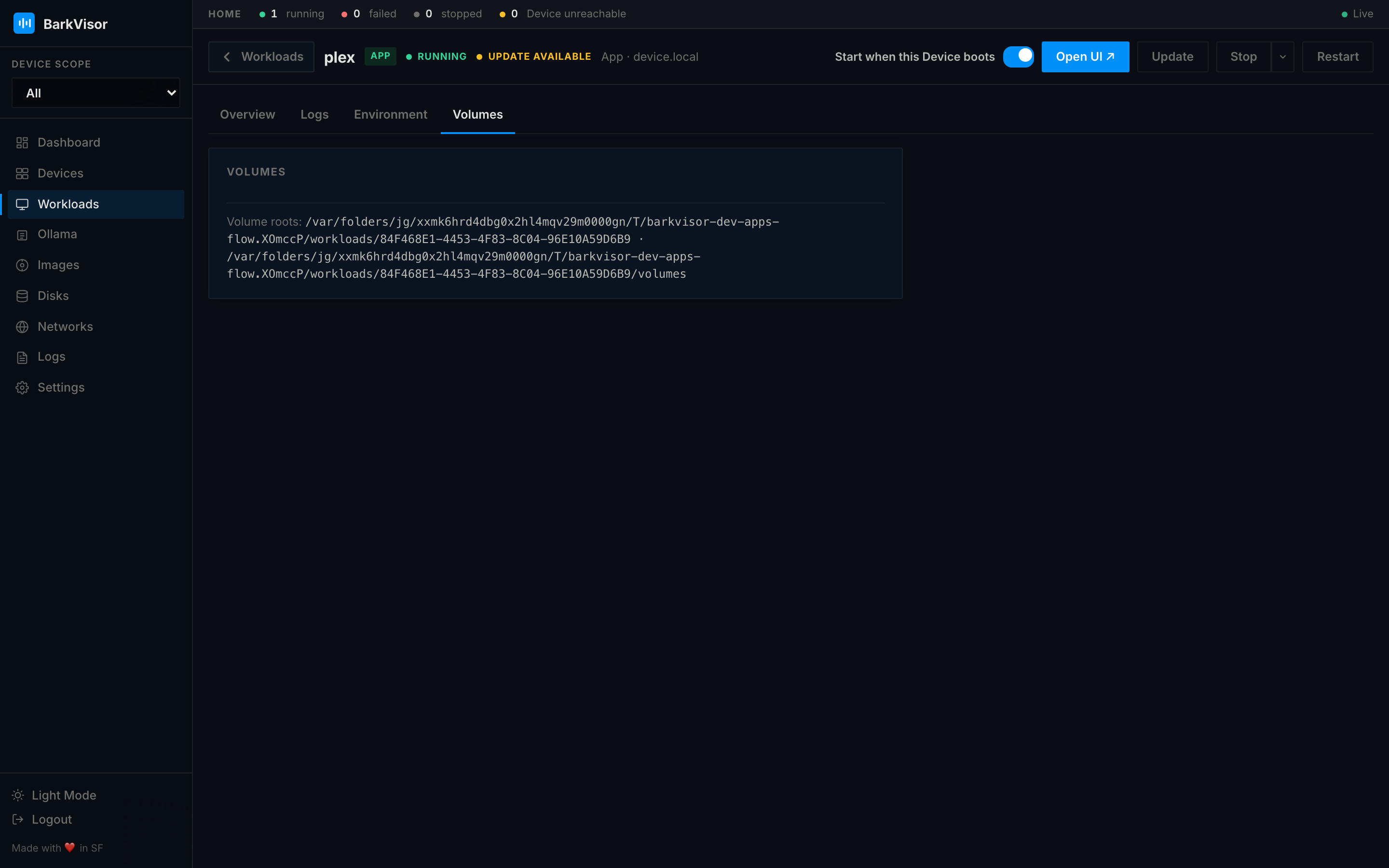
Volumes
Section titled “Volumes”See the Device folders and named volumes used by the app, plus its workload volume folder.