
Devices
A Device is a computer running BarkVisor. The Devices page lists your computers and shows their status.
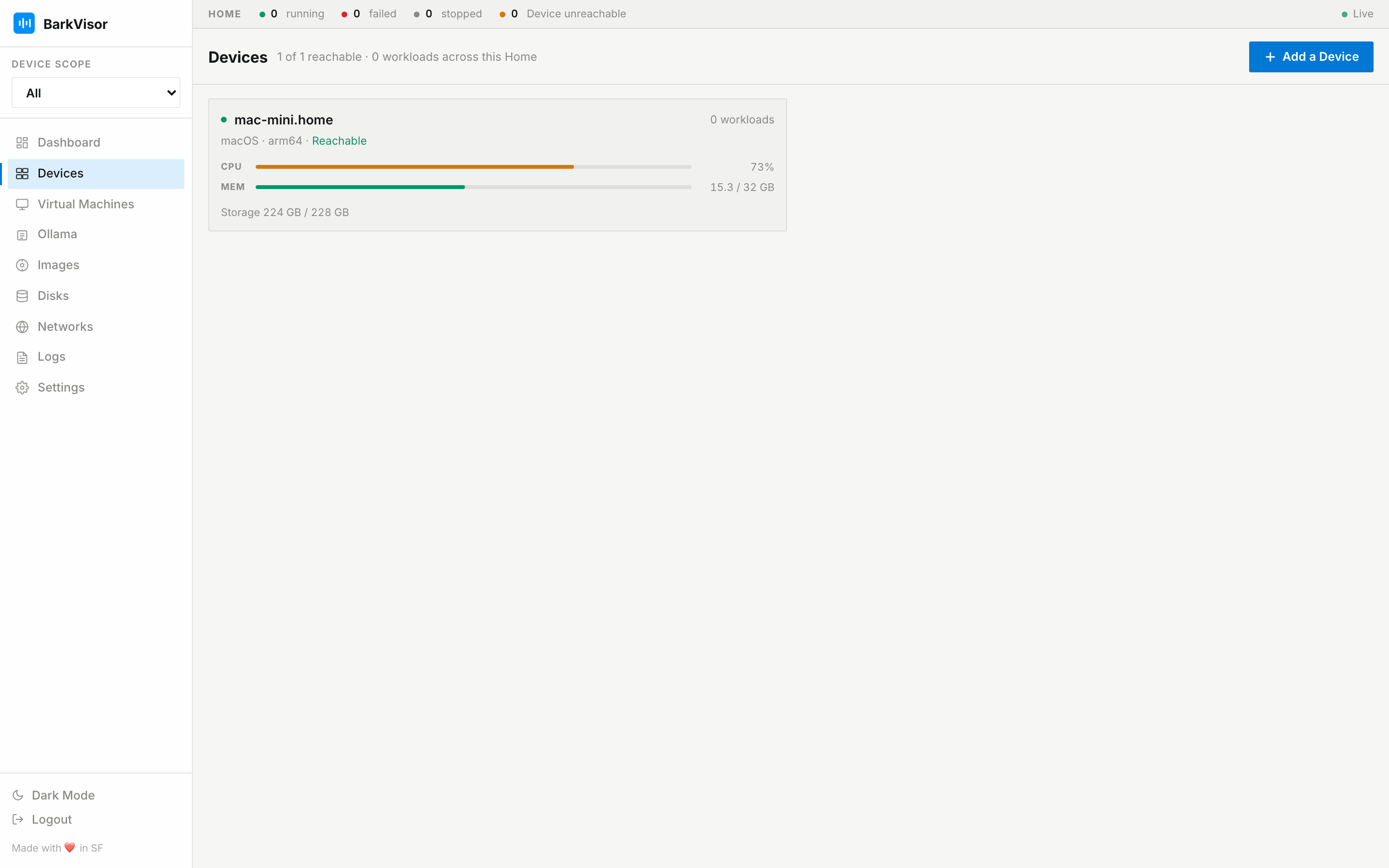
The grid
Section titled “The grid”Each Device renders as a card with:
- Health dots for reachability and workload state
- Temperature and storage readings
- Reachability and workload totals in the header
Cards refresh automatically, so state changes show up without a reload. Clicking a card opens the Device detail view. Rename on the card (or next to the name on Device details) sets the display name.
Adding a Device
Section titled “Adding a Device”Add a Device in the toolbar jumps to Settings → Pairing, where you issue the pairing offer. The flow is documented in Home and pairing.
Device detail
Section titled “Device detail”The detail page for one Device has:
- Connection status, platform, and architecture next to the Device name, plus Rename
- Stat cards CPU and Memory with sparklines, plus a GPU section
- A Facts sheet — CPU, Memory, Storage, Temperature, Address, Uptime, Virtualization support
- A Workloads table (Name, OS, CPU · Mem, Ports, Status) with per-row Start / Stop buttons and Restart, and a confirmation dialog before stopping (Shutdown vs Force Stop)
- A failed-workload banner with an inline Start button when something did not survive a reboot
- Create VM to place a new Workload directly on this Device
- Disk directory — default path for new VM disks on this Device (Browse, Save, Reset to default)
- GPU passthrough readiness on Linux (IOMMU / vfio-pci / KVM). Setup: GPU passthrough
When a Device is unreachable, you can still open its page, but controls that need a connection are disabled.
Terminal
Section titled “Terminal”Terminal on the Device detail toolbar opens a full-window modal with a shell as a login account on that Device. Pick the account, confirm, then type. BarkVisor admin is the credential; there is no OS password prompt. Root is not offered. Further privilege is whatever sudo already allows that account.
The same control works for a Member: the console Device hops the session. SSH keys in Settings are guest cloud-init keys and are not used here.
Related
Section titled “Related”- Virtual Machines
- Settings: Pairing — issue the pairing offer
- Networks — how Devices reach each other
- GPU passthrough