
Images
Images lists OS images across the Devices selected in the sidebar. Images can be installer ISOs or cloud images used to create VMs.
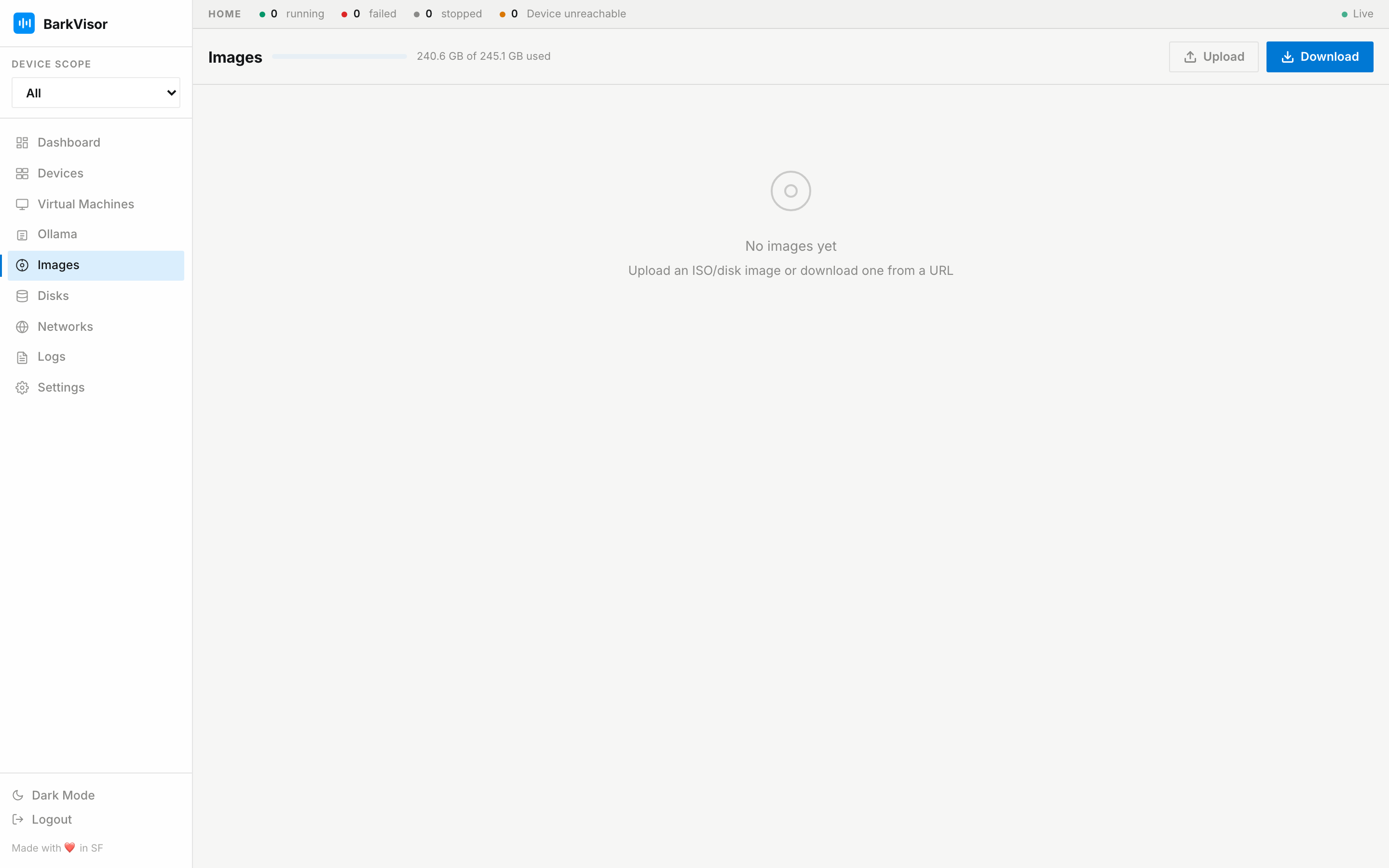
Each Device stores its own image files. The page identifies the Device that owns each image and reports unavailable Devices separately.
Upload or download an image
Section titled “Upload or download an image”- Click Upload to choose a local file, review its name and architecture, and confirm.
- Click Download to provide an image URL.
- Use Create VM to choose a catalog template. BarkVisor downloads its image when needed.
Choose an image architecture matching the Device that will run the VM. Supported compressed images include .xz and .gz.
Storage space
Section titled “Storage space”The capacity bar shows space on the volume holding the image Library. This may differ from the volume holding VM disks. Change the image folder under Settings → Library.
Changing the folder does not move existing files.
Delete an image
Section titled “Delete an image”Use the row’s delete action to remove the image from its owning Device. Check whether a VM still needs it, especially an attached installer ISO. A VM disk cloned from a cloud image is a separate file.